
Last Updated: 12/5/25
Revision Number: 4
Here’s how you open Quick Assist for when you receive support from me or someone you trust. Do not permit connections to your device to a stranger or someone soliciting to repair your device.
Note: This tutorial is new and is a work in progress, please be excuse any mistakes or typos.
Important Note (please read):
Do not accept remote control or remote assistance that is unsolicited. Microsoft and other companies will not call you to repair your device without you calling them first.
Banks or other entities do not require connecting to your device to solve financial issues. For financial issues or questions, contact your financial institution or visit their branch.
For technical issues with your device, contact your device manufacturer or a trusted tech support service, or a trusted IT professional, like a local one near you.
Click here to learn more
Note:
This only applies to Microsoft Windows 10 or later.
How to Launch Quick Assist
- Open the start menu
- Type into the search box: quick assist
- Tap or click Quick Assist entry in the list
Note: If you do not see Quick Assist, it may have been removed. You can download Quick Assist from the Windows Store.
For guidance on that issue, check the Troubleshooting section below
Quick Assist may take a moment to load

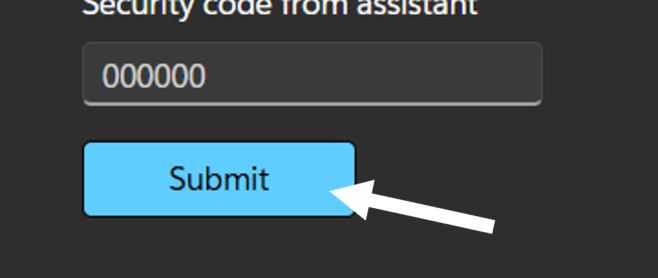
- Under Get Help section, you will enter the code provided in the box below
- After entering the code, click the submit button
It may take up to a minute to connect.
Please be patient.
- Once connected, you will have the option to allow the helper to have remote control
Note:
Be sure you fully trust who you will control of your device
Allow remote control
Pros
- Streamlined technical support experience
- The tech does all the work
- No confusion of following directions
- Recommended for novice users
Cons
- You put your device in the hands of the tech
- The tech will have unrestricted control of your device until you end the session
- Not recommended for working with untrusted techs
Allow viewing only (pros & cons)
Pros
- You remain in control of the support session
- Recommended for advanced users
Cons
- Support might take longer than doing a remote control job
- You will have to do all the work in showing the tech the problem
- You will have to perform the troubleshooting steps
- After making a selection, tap or click Next
The session should begin
It may take a few moments up to a minute to connect.
You can end the session at any time by clicking the End button on the top right of the Quick Assist window.
Troubleshooting issues using Quick Assist & Questions
No Quick Assist on system (or missing)
Some system administrators or use of custom debloating tools, meant to cut on the preinstall apps and services on Windows may remove this application.
In that case, you can download Quick Assist from the Windows Store.
Visit the Quick Assist download page on Microsoft’s website
Note: If you are part of a domain, your system admin / IT personnel may have disabled Quick Assist for security reasons.
In that case, you should get assistance from your IT department directly.
Connection drops or fails to connect
This might be caused by poor connection or unstable internet connection. Try connecting using Ethernet and verify you have a proper internet connection.
Quick Assist relies on intermediatory Microsoft web services to authenticate and if those services go down, so will Quick Assist even if the client and the technician’s connections are healthy.
How do I end a session?
- Switch to the open Quick Assist window
(locate from the taskbar or by using Windows key + Tab to use task view to locate the window) - Tap or click the End button
- Tap or click Yes
Is it safe to use Quick Assist? & What are the scams?
As mentioned in the important notice, you should not accept remote control or remote assistance requests from unsolicited parties.
Microsoft and other companies will not call you to repair your device without you calling them first.
Banks or other entities do not require connecting to your device to solve financial issues. For financial issues or questions, contact your financial institution or visit their branch.
For technical issues with your device, contact your device manufacturer or a trusted tech support service, or a trusted IT professional, like a local one near you.
If you receive a phone call claiming to be Microsoft, another tech company, or a bank asking to connect to your computer this is most definitely a scam.
Do not accept their requests, do not visit their website, hang up the phone and do not answer their calls.
These predatory scammers scam people out of their retirements, intentionally infect people’s computers with malware, lock you out of your computer, encrypt your files or change your passwords, log in to your bank accounts and steal your money.
They may threaten your finances, your family, and even your own life. These are not people to be messed with or contacted.
You can learn more about these scammers, from U.S. Federal Trade Commission’s page on scams.
I recommend reading that article, especially for those who aren’t tech savvy or for the elderly.
Discover more from Andre's Blog & More
Subscribe to get the latest posts sent to your email.
 Andre's Blog & More
One thought on “How to Use Windows Quick Assist (for remote assistance)”